







How to Declutter Your Digital Life
Digital clutter can be just as distracting as a crowded room. An overflowing inbox, unused apps, scattered files, and endless notifications can make it harder to find what you need and focus on what matters.
The good news is that you do not need to organize everything at once. A few practical steps can help you create a cleaner, calmer digital environment. Start with the areas that cause the most frustration, then build simple habits to keep them under control.
What Is Digital Clutter?
Digital clutter includes anything that takes up space, creates distractions, or makes information difficult to find. Common examples include:
– Old files and duplicate photos
– Unused apps and browser extensions
– Thousands of unread emails
– Disorganized folders
– Too many notifications
– Multiple copies of the same document
– Accounts you no longer use
– Bookmarks and subscriptions you have forgotten about
Some digital items may not take up much physical space, but they can still consume time and attention. A cluttered desktop or crowded inbox may cause unnecessary stress every time you open your device.
Start With a Digital Inventory
Before deleting anything, take a quick look at your digital life. Make a list of the main places where you store information and spend time, such as:
– Computer desktop and downloads folder
– Documents and cloud storage
– Email accounts
– Smartphone apps
– Photo libraries
– Browser bookmarks
– Streaming and newsletter subscriptions
– Messaging apps
This inventory helps you see the full picture. It also makes the process easier to manage because you can work through one area at a time.
Choose a starting point based on impact. If your inbox is distracting, begin there. If you often lose files, organize your storage first. Avoid trying to clean every account and device in a single session.
Clean Up Your Files and Folders
A simple folder structure can make digital files much easier to manage. Create a small number of broad folders instead of building a complicated system with many layers.
For example, you might use:
– Personal
– Work
– Finances
– Projects
– Photos
– Archive
Within each folder, create additional folders only when they are genuinely useful. Keep names clear and consistent so you can understand them at a glance.
Use Clear File Names
A good file name should tell you what the file is without requiring you to open it. Include useful details such as the project name, subject, or date.
Instead of:
– `document-final-new`
– `IMG_4837`
– `notes2`
Try:
– `Website Plan October 2026`
– `Family Picnic June 2026`
– `Meeting Notes Project A`
Choose one date format and use it consistently. For example, `2026-10-15` keeps files in chronological order when sorted alphabetically.
Review Your Downloads Folder
The downloads folder often becomes a temporary storage area that is never cleaned. Review it regularly and sort each item into one of three groups:
- Keep and move to the correct folder
- Save elsewhere if it is important
- Delete if you no longer need it
If you are unsure about a file, place it in a temporary folder with a review date. This gives you time to decide without leaving everything scattered.
Organize Your Photos
Photos can be one of the largest sources of digital clutter. Start by deleting obvious duplicates, blurry images, accidental screenshots, and pictures that no longer have value.
Next, organize important photos into albums by:
– Year
– Event
– Location
– Person
– Type of image
Do not worry about creating a perfect system for every photo. Focus on making frequently used images easy to find.
You may also want to review automatic backups and shared photo libraries. Keep important photos in at least one reliable backup location, and avoid creating several confusing copies across different services.
Reduce Email Overload
Email becomes easier to manage when you stop treating your inbox as a permanent storage area. Begin by deleting obvious junk and archiving messages that you want to keep but do not need to see every day.
Search for common sources of clutter, such as:
– Promotional messages
– Automated alerts
– Old notifications
– Expired invitations
– Large attachments
– Newsletters you no longer read
Unsubscribe from unwanted newsletters instead of deleting them one by one. For messages you still want, create a few useful folders or labels, such as “Receipts,” “Travel,” “Projects,” or “Reference.”
Avoid creating too many categories. A simple system is more likely to survive over time.
Set a Basic Inbox Routine
Choose a regular time to review email, such as once in the morning and once later in the day. When you open a message, decide whether to:
– Delete it
– Reply to it
– Archive it
– Add it to a task list
– Save it for reference
If a message requires more time, record the next action somewhere reliable rather than leaving it in your inbox indefinitely.
Remove Unused Apps and Accounts
Review the apps on your phone, tablet, and computer. If you have not used an app in several months and do not expect to need it, consider removing it.
Deleting unused apps can:
– Free storage space
– Reduce notifications
– Simplify your home screen
– Make important apps easier to find
– Reduce background activity
Also review accounts you no longer use. Close old accounts when appropriate, especially if they send regular messages or contain information you no longer need. Before removing an account, check whether it contains photos, documents, purchases, or other data you want to keep.
Take Control of Notifications
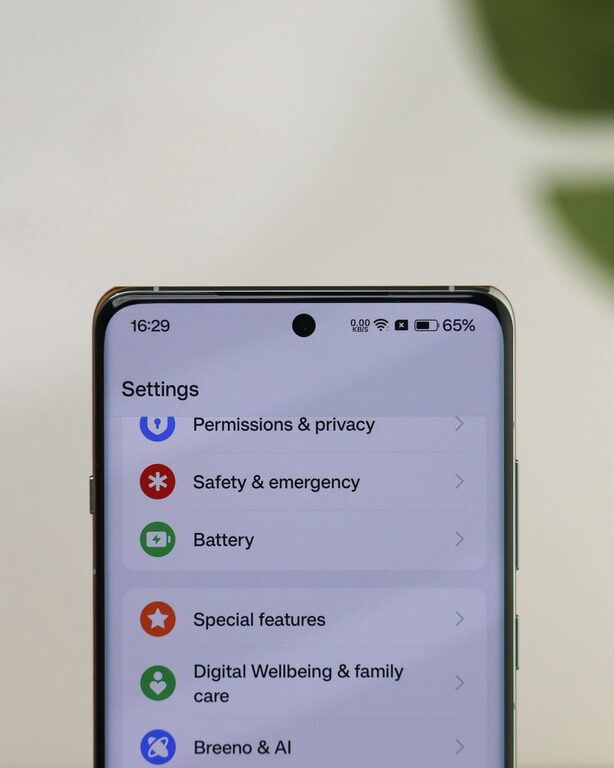
Notifications are one of the easiest forms of digital clutter to reduce. Most apps do not need permission to interrupt you throughout the day.
Turn off notifications that are not important, including:
– Promotional alerts
– Game updates
– Social activity reminders
– Shopping notifications
– News alerts that you rarely read
Keep notifications for tools that require timely attention, such as calendars, direct messages, or important service updates. You can also use scheduled summaries or quiet periods to limit interruptions.
A cleaner notification system helps you decide when to check an app instead of constantly reacting to it.
Simplify Your Browser
A crowded browser can slow down your workflow. Review your bookmarks and delete links that are outdated, duplicated, or unlikely to be used again.
Organize the remaining bookmarks into a few folders, such as:
– Reading
– Work
– Shopping
– Travel
– Tools
Close tabs that you have kept open “for later.” If a page is important, save the link in a bookmark or add it to a short reading list. Keeping dozens of open tabs makes it harder to distinguish urgent tasks from casual interests.
You can also remove browser extensions you no longer use. Keep only extensions that provide a clear benefit and come from sources you trust.
Create a Simple Maintenance Plan
Decluttering works best when it becomes a routine rather than a one-time project. Set aside a short period each week or month to review your digital spaces.
A simple schedule might include:
– Daily: Clear temporary files and process important messages
– Weekly: Review downloads, open tabs, and notifications
– Monthly: Remove unused apps and organize recent files
– Every few months: Review subscriptions, accounts, and backups
Use a calendar reminder if needed. Short, regular sessions are usually easier than waiting until clutter becomes overwhelming.
Make Future Clutter Less Likely
The best way to stay organized is to make small decisions as new information arrives. Before saving or downloading something, ask:
– Will I need this again?
– Where should it be stored?
– Is there already a copy?
– Can I remove it later if it is no longer useful?
Use consistent names, store files in the correct location, and avoid signing up for services you do not expect to use. These habits prevent clutter from building up again.
A Cleaner Digital Life
Digital decluttering is not about deleting everything or creating a perfect system. It is about making your files, apps, messages, and devices easier to use.
Start with one area, remove what no longer serves a purpose, and create a simple structure for what remains. With a few regular habits, your digital life can become more organized, less distracting, and much easier to maintain.